Install as an app (PWA)
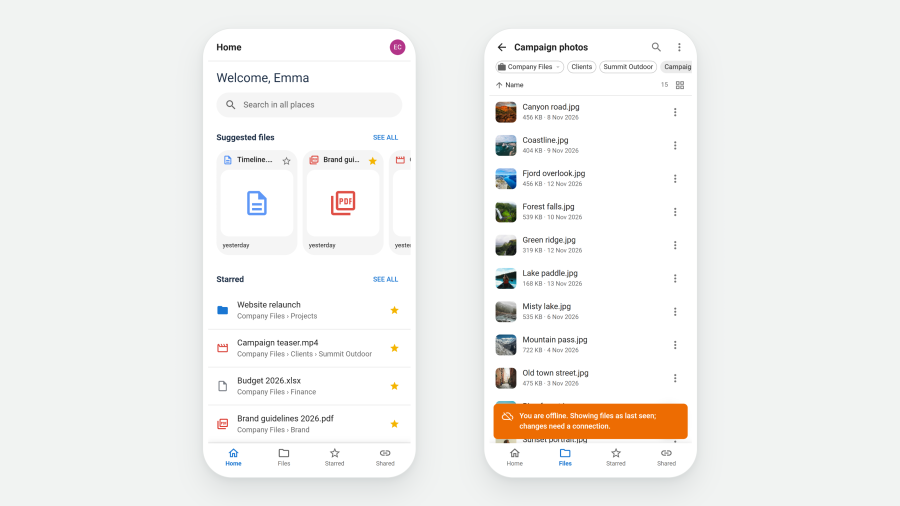
Next File Manager is a Progressive Web App (PWA). On a site served over HTTPS, it can be installed on a phone, a tablet or a desktop and opened like any other app: from the home screen, the Start menu or the dock, in its own window, without the browser around it.
It is the same Next File Manager, with the same profiles, places and protection. Installing it adds an icon and an app window. Nothing is installed on the server.
What a PWA is
A PWA is a website that the browser can install as an app. For Next File Manager, that means:
- No app store. People install it from the browser, straight from your site. There is nothing to publish or download separately.
- One app for every device. The same app runs on Android, iPhone, iPad, Windows, macOS, Linux and ChromeOS.
- Always your site's version. The app comes from your Joomla site, so it is always the version installed there. Updating Next File Manager in Joomla updates every installed app.
- Works briefly without a connection. Folders already opened stay readable offline. See Working offline.
- Your data stays on your site. Files are read from and saved to your server, as in the browser. The app keeps no copy of file contents on the device.
Every Next File Manager site includes it. There is nothing extra to buy or set up.
What you need
| Requirement | Why |
|---|---|
| HTTPS | Browsers only install sites served securely. Set Force HTTPS in Joomla's Global Configuration once the site has a certificate. The Health screen warns when the site runs without it. |
| The Install as app switch on | It is one of the apps in Configuration → Apps, on by default. |
| A browser that installs web apps | Chrome, Edge and other Chromium browsers on desktop and Android install directly. Safari on iPhone and iPad uses Add to Home Screen. |
Installing it
Desktop (Chrome, Edge) and Android. When the browser is ready to install, an Install app button appears in the header of the file manager, just left of the dark-mode switch: a screen with a down arrow (hover it to see Install app). Click it and confirm. The browser's own install icon in the address bar works too.
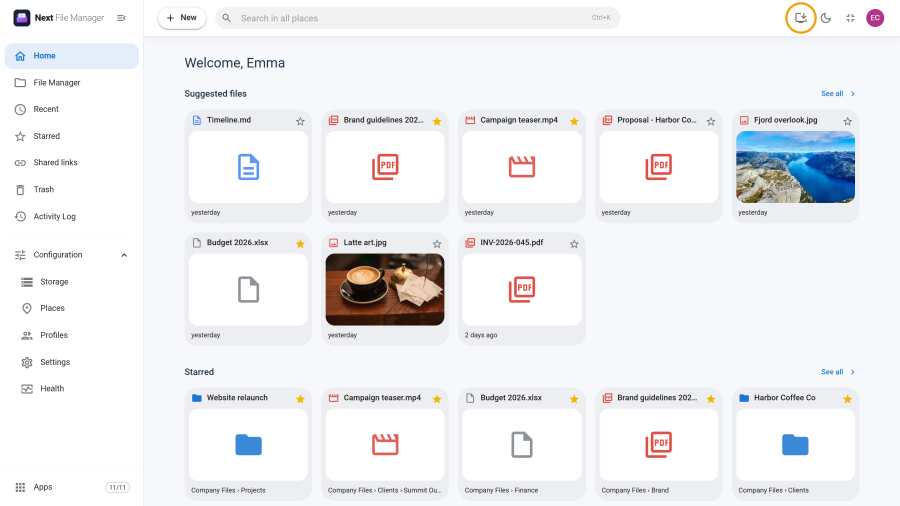
In the phone app on Android, Install app is in the avatar menu instead.
iPhone and iPad (Safari). Safari has no install button. Tap your avatar in the top right corner: the menu shows Add to Home Screen. Tap it for the steps: tap Safari's Share button, then Add to Home Screen, then Add.
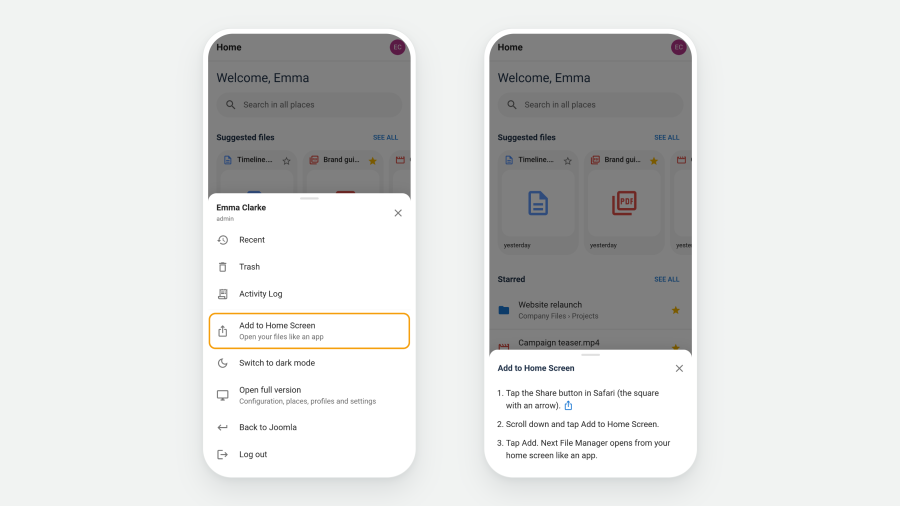
The icon is the Next File Manager logo. The app opens straight on the file manager, full screen. Back to Joomla is hidden there, since there is no Joomla page around it to go back to.
The administrator side and the site front end are separate apps: installing one does not install the other. Each opens where it was installed from.
Working offline
The installed app remembers what you have seen:
- Folders you already opened stay readable offline, as they were when you last saw them, with their thumbnails.
- File contents, downloads and previews are not stored on the device.
- Nothing can be changed offline. A notice says: "You are offline. Showing files as last seen; changes need a connection."
What was stored on the device is deleted when you log out, and when a different account signs in on the same device.
Updates
Updates reach the app on their own. Nothing needs to be cleared or reinstalled on the device.
- The next time the app is opened, or a page is loaded, it runs the new version.
- An app or tab that was open during the update shows "A new version of Next File Manager is ready." with a Reload button. It waits for you to choose the moment, so an upload or an open editor is not cut short. Until then, the open app keeps working.
- The folders stored for offline use are cleared on an update, because the new version may show them differently. Open them again while online to store them again.
Switching it off
Switch off Install as app in Configuration → Apps and the install buttons disappear. Devices that already installed it stop using their stored copies and delete them on their next visit.
The Install app button does not appear
Check, in this order:
- The site is not on HTTPS. The button never appears over plain HTTP.
- Install as app is switched off in Configuration → Apps.
- It is already installed on this device. Open it from the home screen, the Start menu or the dock instead.
- The browser does not offer it. Firefox on desktop, for example, does not install web apps. On iPhone and iPad, use Add to Home Screen from the avatar menu.