Health
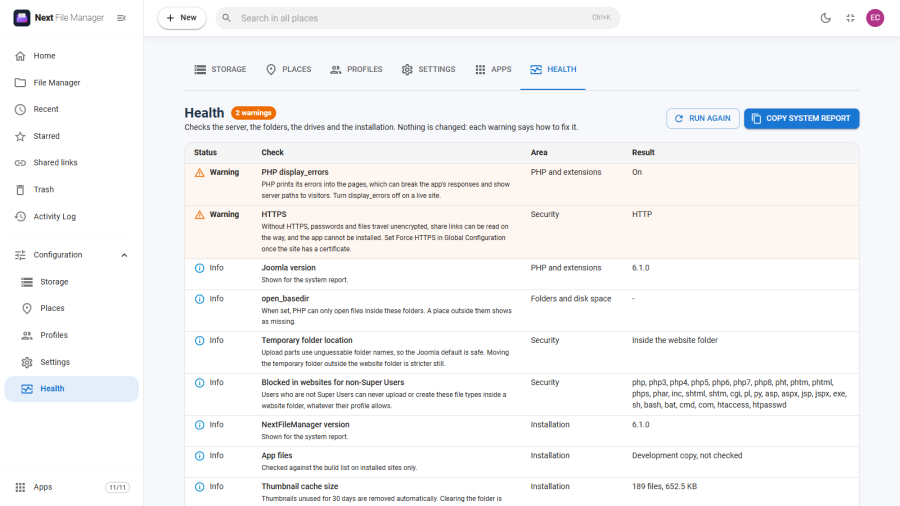
A check-up of the server, the folders, the drives and the installation, at Configuration → Health.
When something does not work, open Health first. It often names the cause, and every warning says how to fix it. Health only reads: running it changes nothing.
Who can see it
Super Users only. The results describe the server and the installation, so the Health entry does not appear for anyone else, whatever their profile allows. It cannot be switched off in Apps.
What it checks
The Area column groups the checks.
PHP and extensions
- The PHP and Joomla versions.
- Memory limit, Maximum execution time, and the upload limits that decide how large files are sent in parts.
- The PHP extensions Next File Manager uses: GD for thumbnails (and whether it can make WebP thumbnails), zip, fileinfo, mbstring and openssl. The ftp and curl extensions are only needed for FTP, S3 and WebDAV drives, and the hint says so.
- PHP display_errors, which should be off on a live site.
Folders and disk space
- Joomla's temporary folder, and the folders used for upload parts, ZIP locks and the thumbnail cache.
- Free space for temporary files. Less than 1 GB is a warning.
- open_basedir, which can make a place outside the allowed folders show as missing.
- Each place on this server: whether its folder exists, can be read, can be written when the place allows writing, and has enough free space.
External drives
Every SFTP, FTP, WebDAV and S3 connection under Configuration → Storage is tested on its own, all at the same time. Each row shows Connecting… until its answer arrives, so a slow server only delays its own row. A working drive shows how long it took to connect. A failing drive shows the error, with a hint to open the drive under Configuration → Storage and use Test Connection to see more.
Security
- HTTPS. Without it, passwords and files travel unencrypted, share links can be read on the way, and the app cannot be installed.
- Temporary folder location: inside or outside the website folder.
- Trash protected: whether the Trash folder of each website place still has the files that stop it being opened from the web.
- Blocked in websites for non-Super Users: the file types that users below Super User can never upload or create inside a website folder, whatever their profile allows.
- Demo mode: a warning when it is on.
Installation
- The Next File Manager version.
- Database tables, columns and schema version.
- App files: whether any file of the app is missing, and whether files of an earlier version are still on the server.
- Whether Next File Manager's plugins are installed and enabled, including the update helper plugin that lets Joomla download updates.
- When the daily clean-ups last ran: removing unfinished uploads, and emptying old items from the Trash.
- The size of the thumbnail cache.
Reading the results
Every check has one of four statuses:
| Status | Meaning |
|---|---|
| Failed | Something is broken. Fix it first |
| Warning | Something works badly or is risky |
| Info | A value shown for reference, or for the system report |
| OK | Nothing to do |
The list is sorted worst first: failures, then warnings, then drives still connecting, then information, then what is fine. The chip next to the title sums it up: All good, the number of warnings, or the number of failures.
Failures and warnings are highlighted. The text under each check says what it means and how to fix it.
Run again
After you fix something, click Run again to repeat every check, drives included.
Copy system report
Copy system report puts a plain-text summary on the clipboard, ready to paste into a support request. It lists every check with its status and value, plus the date, your time zone and your browser.
It leaves out passwords and drive addresses. External drives appear only by number, type and result, for example "#1 sftp: 412 ms". The report does include place names and server settings such as open_basedir, so read it through before posting it anywhere public.
If the browser refuses to copy, a message asks you to select the text and copy it yourself.