Live Monitoring
The monitoring board shows an exam while it is still happening — who is in the room, how far through they are, how long they have left — and puts the people who need a human first. From the same screen you can act on one person, act on a whole room, or put the room on a projector.
The board runs in two places from one implementation: as a route in the management application, and as a standalone page on the site that can be given to an invigilator who has no Joomla account at all.
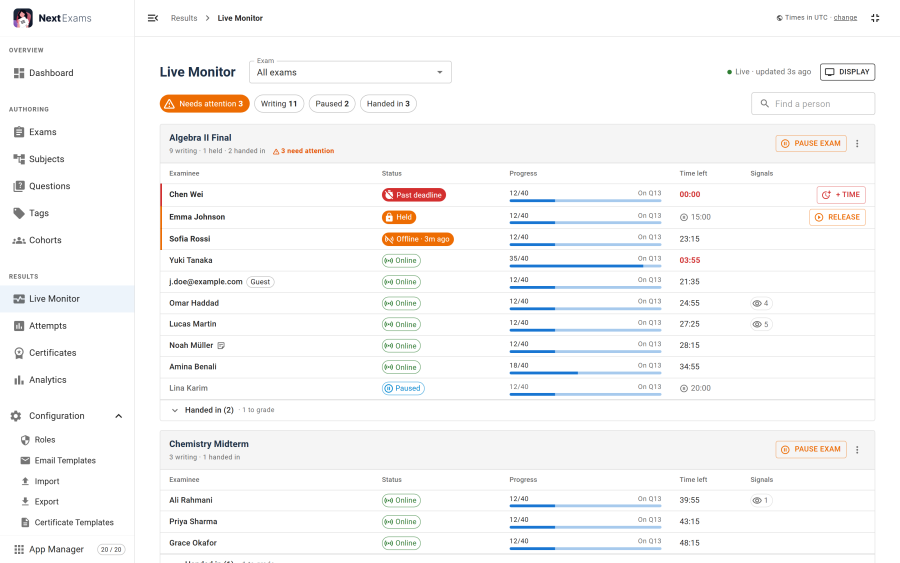
What the board shows
Along the top: the exam picker, a live status line (Live · updated 3s ago, or Updates paused while this tab is hidden), and the Display menu for projector screens.
Filter chips double as the summary: Needs attention, Writing, Paused and Handed in, each with its count. Click one to show only those people, click it again to show everyone. Find a person searches by name, ignoring accents.
One section per exam. Watching every exam at once, each room gets its own section, and its header carries that room's own actions — so they always have a room to act on. The header also sums the room up: 9 writing · 1 held · 2 handed in · 3 need attention.
Each row shows:
| Column | Meaning |
|---|---|
| Examinee | The person sitting the exam, or the guest identity they supplied. A note icon means an invigilator left a note |
| Status | One chip: Online, Offline · 3m ago, Paused, Held, Past deadline, or Handed in 13:30 |
| Progress | Answered questions out of the total in their frozen paper, and the question on screen |
| Time left | Counts down live; red in the last five minutes; a frozen clock shows a pause mark; No limit when untimed |
| Signals | One badge with the total of the integrity signals, broken down on hover. Absent when there is nothing to report |
People who have handed in fold into a Handed in (4) · 1 to grade group under each room — still there, so a row does not seem to vanish the moment someone submits, but out of the way of the people still writing. The Handed in chip unfolds them.
On a narrow screen — a tablet, or a site template with a narrow content column — the rows turn into cards with the same information. The board measures the space it actually has, so the same page adapts wherever it is placed.
Progress counts are real. They are computed with the same rule the grader uses to decide whether a response is unanswered, rather than a naive "is there a row" test. That distinction matters: an emptied answer is stored as an empty structure, not as nothing, so a naive count over-reports — and over-reporting tells an invigilator that a stuck candidate is fine.
Who needs attention
Three situations put a person at the top of their room, in this order:
| Reason | What it means | Quick button |
|---|---|---|
| Past deadline | Their time ran out but the attempt never closed — almost always a browser that shut before it could hand in | + Time |
| Held | An invigilator paused them. Only an invigilator can release them | Release |
| Offline | Their exam has not checked in within the stale threshold, with time still on the clock | — |
An offline row has no button on purpose: a closed laptop and a dropped connection look the same from here, and the useful thing is to go and look.
Two things are deliberately not reasons. Time running low is shown by the red clock instead — when a room starts together, everyone crosses five minutes together, and a chip that fills up at exactly the wrong moment helps nobody. Integrity signals are never a reason either: they are a reason to look, not a verdict, and ranking people by them would frame them as suspects.
The reason is decided by the server, so the management application, the site board and any API client always agree on who is in trouble.
Acting on one person
Click a name, or anywhere on the row, to open the person's details panel. On a wide screen it sits beside the list, so you can move from person to person; on a narrow one it opens over the board.
The panel shows the status and, in plain words, why the person needs attention; their time left, progress, the question on screen, when they were last heard from, when they started, how often they paused and how many questions they flagged; the invigilator note, editable in place; their integrity signals explained with the "counts only, never a verdict" caveat; and what has been done to this attempt so far. In the management application it also links to the full attempt.
The actions offered follow the person's situation, so every button means one thing:
| Situation | Actions |
|---|---|
| Writing (online or offline) | Give more time · Pause · Hand in now |
| Past deadline | Give more time · Hand in now |
| Held by an invigilator | Release · Give more time · Hand in now |
| Paused by the examinee | Resume · Give more time · Hand in now |
| Handed in | Reopen |
Give more time appears only on a timed exam. Release, Resume and Pause happen at once — they are reversible, and the board shows the new state a second later. Give more time, Reopen and Hand in now ask first. Hand in now cannot be undone: the attempt is graded on the answers already saved.
Reopen puts a finished attempt back into play with a fresh clock and clears its score until it is handed in again. It does not withdraw a certificate already issued for that attempt, and handing in again sends the confirmation email a second time — the dialog says so before you confirm.
Extra time past the exam window is cut off. When an exam's window closes attempts at Open until, time given beyond that moment is lost when the window shuts. Both time dialogs warn you when that would happen.
Every action is written to an audit log against the attempt it touched, recording who did what and when. Automatic closures appear there too, attributed to Automatic — so an attempt that ended without anyone touching it still says why. Those entries are records only; nobody can invoke an automatic closure as an action, whatever their permissions.
You do not have to hand in everyone who goes quiet. An attempt whose examinee has closed their browser is closed on its own, following the exam's auto-close policy. Hand in now is for the case you want ended now rather than at its deadline. Opening this board is itself one of the things that triggers the sweep, so a room you are watching keeps itself tidy.
Actions are applied as narrow, targeted updates to the specific attempt and only while it is still in progress. They never rewrite the attempt wholesale, because the examinee's own browser is still saving to the same record — a broad write would simply be overwritten by their next autosave.
Acting on a whole room
Each room's header has one button for the room-wide action you reach for in a hurry:
- Pause exam freezes the clock for everyone taking the exam, after a confirmation. They cannot restart it themselves — only Release can.
- Release exam takes its place when everyone in the room is held.
The ⋮ menu beside it holds the rest:
| Item | What it does |
|---|---|
| Release everyone held | When some people are held and others are writing, unfreezes just the held ones |
| Give everyone more time… | Adds the same minutes for everyone still taking the exam, paused people included. Anyone whose clock has already run out gets the minutes from now |
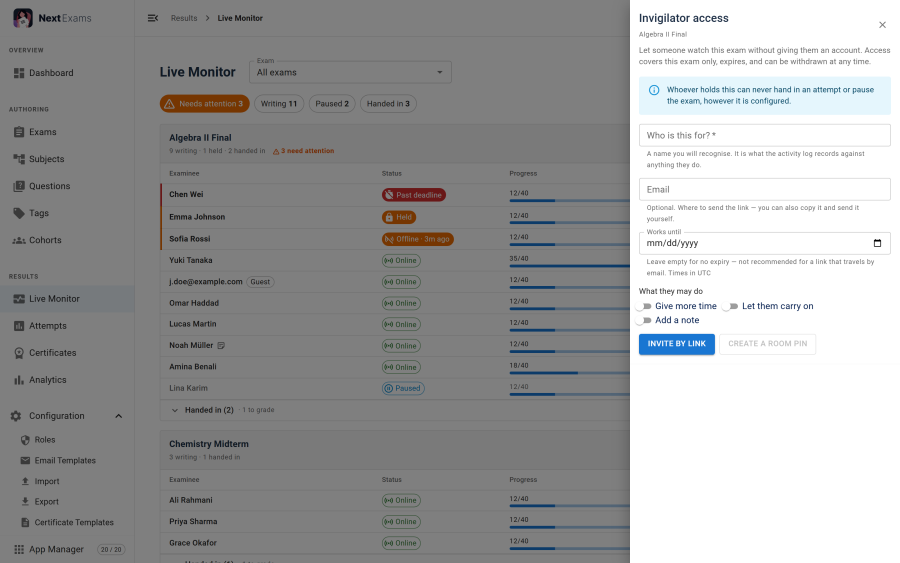
| Invigilator access… | Issue and withdraw invigilator access for this exam |
| Activity | Everything the invigilators have done in this room |
Give everyone more time is for the moment a room is interrupted — the Wi-Fi drops, a fire alarm empties the hall — when one dialog per person would keep everybody waiting. It needs a Joomla account with the give-more-time permission: it is never available through an invigilator link or PIN.
Projector screens
The Display menu turns the board into a full-screen display. There are two, because a screen the examinees can see must not show what a screen for staff can.
| Display | For | Shows |
|---|---|---|
| Room clock | A screen the examinees can see | The exam title, a large countdown, Ends at 15:00, the current time, and how many are writing and have handed in. No names, no signals |
| Staff wall | A control room or an invigilators' screen | Everyone still writing across every room, in large type, whoever needs attention first. Read-only |
People start at different times, so a room has no single clock. The room clock counts down to the exam's closing time when its window ends the exam; otherwise to the moment the last person still writing runs out. An untimed exam with no window shows the time and the counts.
When the staff wall has more people than fit on the screen, it pages itself every fifteen seconds — nobody scrolls a projector.
Both displays go fullscreen when the browser allows it and take over the page when it does not, and they ask the device to keep its screen awake. The Exit display button appears when the mouse moves; Esc also leaves.
Choosing an exam
The exam picker lists every published exam, most relevant first: Taking now, Finished recently, Open now, Opening soon (its window opens within a day), then Other exams. Type to search.
Exams nobody has started are included on purpose — invigilator access is best set up before the room fills, and you can open an exam's room, and its ⋮ → Invigilator access…, before anyone has begun.
A Live Monitor menu item pinned to one exam hides the picker and names the exam instead.
How it stays current
The board polls. Each examinee's browser also sends a lightweight heartbeat so last seen is meaningful even when they are reading rather than typing. Between polls, the countdowns and last seen times tick every second on their own, without asking the server anything.
Three intervals are configurable, each with a non-zero floor so the board cannot be turned into a self-inflicted denial of service:
| Setting | Range | What it controls |
|---|---|---|
| Poll interval | 3–300 seconds | How often the board asks for an update |
| Stale threshold | 15–3600 seconds | How long without a heartbeat before someone is flagged as quiet |
| Ping interval | 10–600 seconds | How often the examinee's browser checks in |
A quiet room is nearly free. Before building the board, the server computes a cheap fingerprint of the room; if nothing has changed since the last poll, it returns a tiny unchanged response instead of rebuilding and re-sending the whole board. A busy room rebuilds every time — correctly, because it genuinely changed.
The fingerprint also changes the moment somebody goes quiet or their deadline passes, even when nothing is written anywhere — so a room where everybody's connection drops at once still shows them as offline, rather than frozen on Online · just now. It deliberately refuses to answer while there is activity newer than one poll interval: last-seen times have one-second resolution, so two saves either side of a board build within the same second could otherwise stay invisible; when in doubt, the board rebuilds.
Updates pause while the board's browser tab is hidden and resume, with a fresh read, the moment it is shown again.
A server-sent-events transport is also implemented and can be enabled. It removes HTTP round trips but does not reduce latency — the server still re-checks at the same interval either way.
Accountless invigilators
You can hand invigilation to someone without creating a Joomla account for them. Two kinds of grant:
| Type | How it works |
|---|---|
| Link | A long random token in a URL. Only a hash is stored; the full link is shown once, when you create it. |
| PIN | A six-digit code entered on the monitor page. |
When you issue one, a QR code appears beside it so a tablet can scan it instead of someone typing it. For a link, the code is the link — treat it the same way, since anyone who scans it gets in. For a PIN, the code only opens the PIN page; the PIN is still the key. An invite link can also be emailed to its recipient straight from the panel.
The invigilator sees exactly the buttons their grant allows, and nothing more.
A grant is always scoped to exactly one exam. There is no all-exams grant, and this is a deliberate refusal rather than a missing feature: an unscoped link would expose every examinee in the system to whoever the link reached.
A grant can never end anyone's exam, or take time away. Grants may view, give more time, let someone carry on and add notes. Hand-in and pause are structurally excluded — the capability set carried by any grant is intersected against the permitted list — a grant's request to remove time is refused, and Give everyone more time is never available through a grant. A leaked link cannot end an exam however the grant was configured.
PINs are protected differently from links, because six digits is only a million possibilities. They are stored with a slow password hash rather than a fast digest, and — more importantly — PIN entry is rate-limited per IP address, five attempts before a lockout. The rate limit is what actually stops guessing.
Access control
| Action | Required capability |
|---|---|
| View the board and its displays | monitoring — view |
| Give more time to one person | monitoring — extend_time |
| Give everyone more time | monitoring — extend_time, held through a role — never a grant |
| Hand in now | monitoring — force_submit |
| Resume, reopen | monitoring — allow_resume |
| Pause and release | monitoring — pause_exam |
| Edit a note | monitoring — set_note |
| Issue or revoke grants | monitoring — manage_grants |
Releasing a paused room maps to the same authority as pausing it — un-pausing is not a lesser act than pausing.
The monitoring endpoints are reachable without a Joomla login, because an invited invigilator is a guest as far as Joomla is concerned. Every one of them therefore authorises itself, against either a monitoring role permission or a redeemed grant. For an action on a specific attempt, the exam it belongs to is re-read from the attempt itself rather than taken from the request, so a grant for one exam cannot be used to act on an attempt in another.
Roles seeded at installation reflect this split: an exam administrator gets everything, a proctor gets a working subset, and author, grader and viewer roles get view-only access.