Site Modules and Menu Items
Installing Next Exams does not create any front-end pages. Examinees reach exams through menu items you create, six modules put exam-related information into your template's module positions, and the {nextexam} shortcode puts one exam's start screen into any article.
Menu item types
Six types appear under NextExams when you add a menu item.
| Type | What it shows | Options |
|---|---|---|
| NextExams - Exams | A public listing of available exams | Optionally filter to one subject |
| NextExams - Single Exam | The introduction, access gate and start screen for one exam | The exam — required |
| NextExams - My Attempts | The logged-in user's own attempts and results | None |
| NextExams - My Certificates | The logged-in user's own certificates, with download and verification links | None |
| NextExams - Live Monitor | The live invigilation board | An exam, or all exams with live activity |
| NextExams - Management App | The full management application on the site | None |
A minimal public setup is one Exams item. Add My Attempts and My Certificates so returning examinees can find their history.
My Attempts and My Certificates send a visitor who is not logged in to the login page, and return them afterwards. They, and the result page, are marked so search engines never index them — each shows one person's own results.
Note: the runner, the result page and the certificate verification page have no menu item type of their own. They are reached from an exam, so they need no menu entry — the exam page is the way in.
NextExams - Management App runs the identical administration application on the site, for authors and administrators who would rather not visit the Joomla administrator. It requires Joomla's core.manage permission and a Next Exams role; see Roles and permissions.
NextExams - Live Monitor is the page you give to an invigilator holding a link or PIN grant. Publish it with a Joomla access level that does not exclude guests, since an invited invigilator is a guest as far as Joomla is concerned; the page authorises the grant itself. Pinned to one exam, it hides the exam picker and names the exam instead. See Live monitoring.
Modules
Six site modules, all published through Content → Site Modules in the usual way.
| Module | What it shows |
|---|---|
| NextExams - My Exams | Exams the logged-in user can take, grouped into Available now, Upcoming and Closed |
| NextExams - My Results | The user's past attempts, with scores shown only when released, plus a leaderboard opt-in toggle |
| NextExams - Exam Search | A search box and an access-aware list of published exams the visitor can take |
| NextExams - Leaderboard | Top scorers for an exam, with a configurable privacy mode |
| NextExams - My Certificates | The user's certificates: download for valid ones, an Expired badge for expired ones. Hidden until the exam's results are released; revoked ones are never listed |
| NextExams - Exam | One exam's start screen — see Embed one exam |
Each has its own parameters in the module editor.
Embed one exam
Put an exam's start screen anywhere: the details, the access code or guest details when the exam asks for them, and Start or Resume. The questions themselves always open on the exam's own page, at full width.
In an article: the {nextexam} shortcode
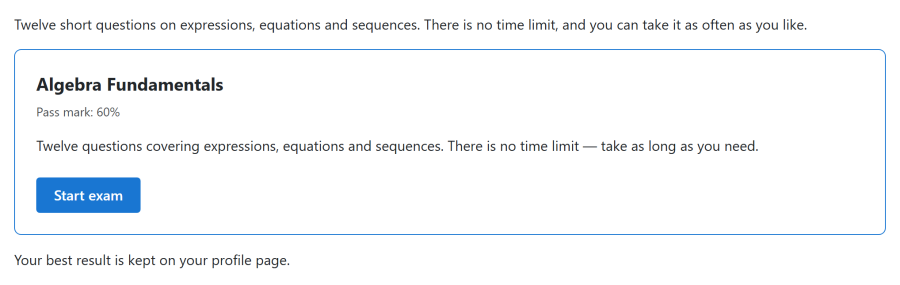
{nextexam id=5}
{nextexam id=5 layout=full intro=0 button='Take the test'}
The shortcode works wherever Joomla prepares content: articles, custom modules with Prepare Content on, and other extensions that run content plugins. Every attribute but id is optional; the defaults are set in System → Plugins → Content - Next Exams.
| Attribute | Values | Default |
|---|---|---|
id |
The exam's id — required | — |
layout |
compact (details and the action) or full (adds the introduction and the schedule) |
compact |
title |
1 or 0 |
1 |
meta |
Time limit and pass mark: 1 or 0 |
1 |
attempts |
Attempts left: 1 or 0 |
1 |
intro |
The introduction, full layout only: 1 or 0 |
1 |
schedule |
Opens, closes and due dates, full layout only: 1 or 0 |
1 |
start |
page (Start opens the exam's page) or modal (Start opens the exam in a window over this page) |
page |
button |
Your own Start label, in quotes | Start exam |
{nextexam id=5} on its own still works as it did before, and shows the compact layout.
In a module position: NextExams - Exam
Pick the exam, choose Compact for a sidebar or Full for a wide position, choose where Start opens, and show or hide the same parts. The exam's title is hidden by default, because the module's own title usually names it.
Start in a window over the page
With start=modal (or Start opens: A window over this page in the module), Start opens the exam full-window on top of the page the learner is on, instead of going to the exam's own page. It is the same exam page, with your site's header and menus left out; timer, navigator, autosave and fullscreen work exactly as they do there.
- Leaving uses the exam's own ×. When the exam allows pausing, leaving pauses it and closes the window. Otherwise the learner is asked first — for a timed exam the question says plainly that the timer keeps running — and their answers are saved before the window closes. The attempt is never abandoned: the embed then offers Resume.
- The result opens in the same window after submitting. Close returns to the page, which refreshes to show what is true now — attempts left, or nothing more to start.
- If the exam cannot start (a cooldown, no questions yet), no window opens: the page shows the reason on the embed, exactly as without the option.
- Without JavaScript, Start always opens the exam's own page.
On a phone a full-window exam looks much like a page of its own; the option matters most on desktop, where the learner keeps the article behind it.
What the learner sees
- The same rules as the exam's own page: access codes, guest details, login, attempt limits, cooldowns and the exam window all apply.
- If something goes wrong — a wrong access code, an exam with no questions yet — the learner comes back to the same page, with the message on the embed they used.
- An unpublished or deleted exam shows nothing at all, not even its title.
Caching
The start screen is different for every visitor, so Next Exams keeps it out of every cache:
- System - Page Cache never stores a page that shows an embedded exam.
- The NextExams - Exam module is never cached.
- With Global Configuration → System → Cache switched on, Joomla stores articles for guests. A shortcode then shows guests the exam's details and a button to the exam's own page, where the access check happens. Signed-in users always see the full start screen.
Changing the look
The start screen is one layout, shared by the exam page, the module and the shortcode. Override it once in your template at html/layouts/com_nextexams/exam/start.php to change all three.
Leaderboard privacy
The leaderboard module has three privacy modes, because publishing a ranked list of named people is not always appropriate.
| Mode | Behaviour |
|---|---|
| Opt-in | Only people who have explicitly agreed to appear are listed |
| Anonymised | Scores are shown without identifying anybody |
| Usernames | Full names or usernames are shown |
Opt-in is the safe default for anything involving assessment results, which are often sensitive. The opt-in toggle itself lives in the My Results module, so a learner controls their own participation from the same place they see their scores.
Access awareness
The modules respect the access rules on the exams they list. Exam Search and My Exams show a visitor only what that visitor could actually start, so a restricted exam does not advertise itself to people who cannot sit it.
They also respect the App Manager: with the Site Modules app switched off, the modules stop rendering.
Access control
| Action | Required permission |
|---|---|
| Create menu items and publish modules | Joomla's own permissions — this is standard Joomla administration |
| Use the Management App menu item | Joomla core.manage and a Next Exams role |
| See a module's content | Whatever the underlying exams' access rules allow |
The leaderboard opt-in is posted by a logged-in learner rather than an administrator, so it is exempt from the management permission that guards the rest of the site-served endpoints — otherwise the toggle in My Results could never work.