Roles and Quotas
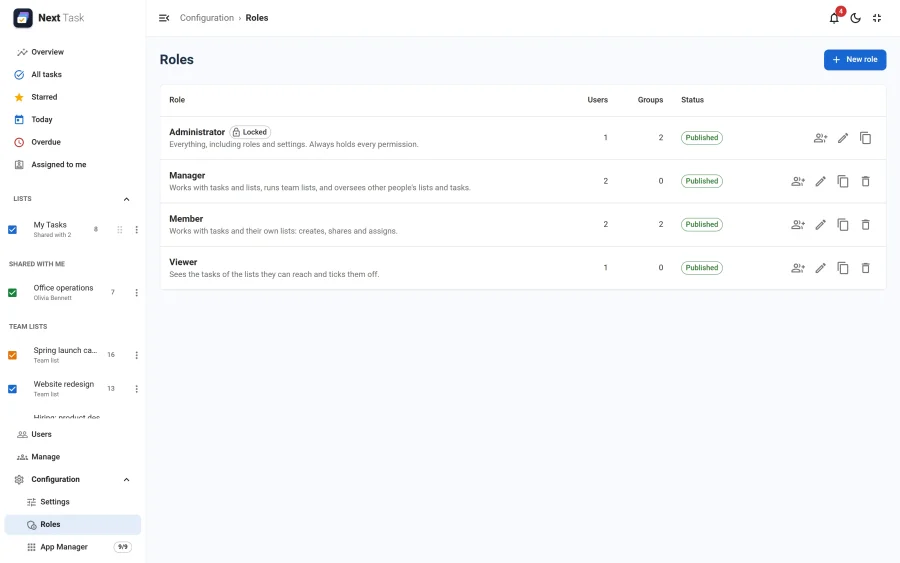
What a person may do in Next Task is decided by roles: named sets of permissions, given to Joomla users or to whole usergroups and edited in the app under Configuration > Roles. A role can also carry quotas: how many lists a person may own and how many open tasks a list may hold.
The Permissions
A role's permissions are set out as one card per feature, each action a checkbox with a line on what it allows. Each card has its own Select all box, and Grant everything / Clear all switch every permission at once. A feature whose app is off is marked App disabled, and keeps its grants.
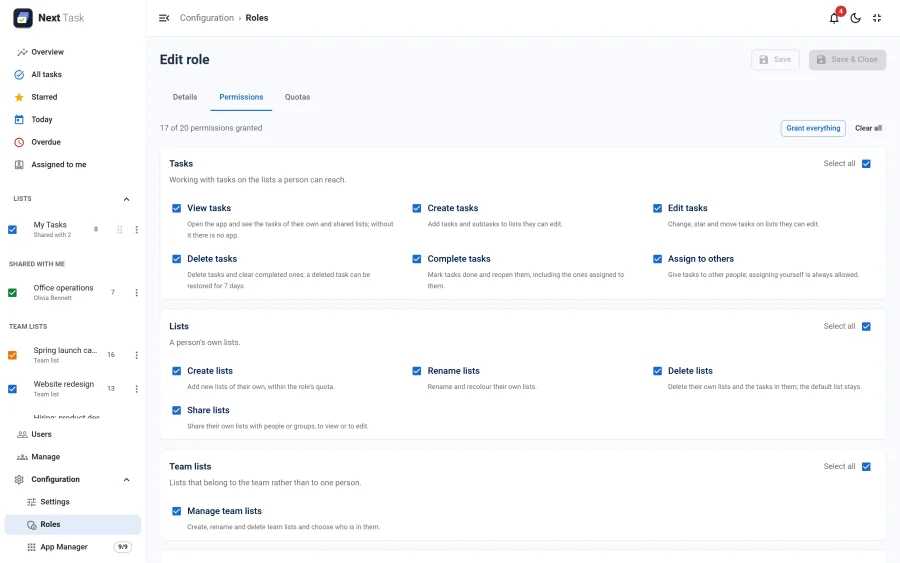
| Feature | Actions |
|---|---|
| Tasks | View, Create, Edit, Delete, Complete, Assign |
| Lists | Create, Edit, Delete, Share |
| Team lists | Manage |
| Overview | View |
| Users | View, Notes |
| Manage | View all, Transfer, Shares |
| Configuration | Settings, Apps, Roles |
What each permission allows is in the Roles reference.
Four Roles Out of the Box
- Administrator: everything, including permissions added in later versions. It can't be edited, unpublished or deleted.
- Manager: everything but the configuration.
- Member: tasks and lists.
- Viewer: sees the tasks of the lists they can reach and ticks them off.
On installation, Administrator goes to the groups that may manage the component or administer the site (Administrator and Super Users on a standard Joomla), and Member to the other groups directly under Public (Registered and Manager on a standard Joomla). Manager and Viewer are not assigned.
Roles and Lists Work Together
A role says what a person may do; the lists say where. Editing a task needs Tasks > Edit and edit access to its list. A list shared to view stays read-only whatever the role, and no role opens someone else's list, apart from the read-only Manage > View all. Every permission is checked on the server, in the app and in the REST API alike.
Assigning Roles
Open a role and choose Assignments: the Users tab gives it to individual people, the Groups tab to Joomla usergroups (and their child groups). A person holds one role directly; their groups may add more.
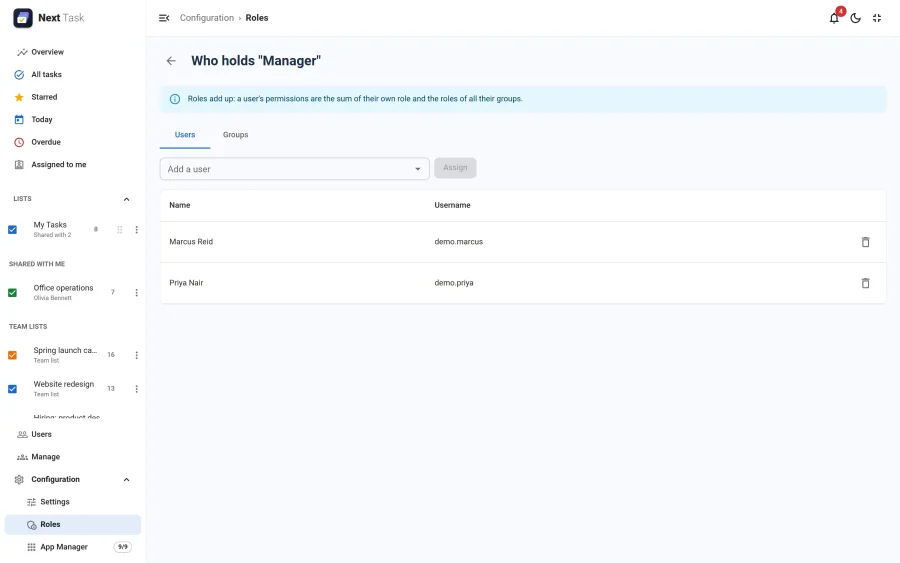
Roles add up: a person gets everything their own role and all their groups' roles grant. A Super User always has every permission.
Quotas
The Quotas tab of a role holds two optional limits:
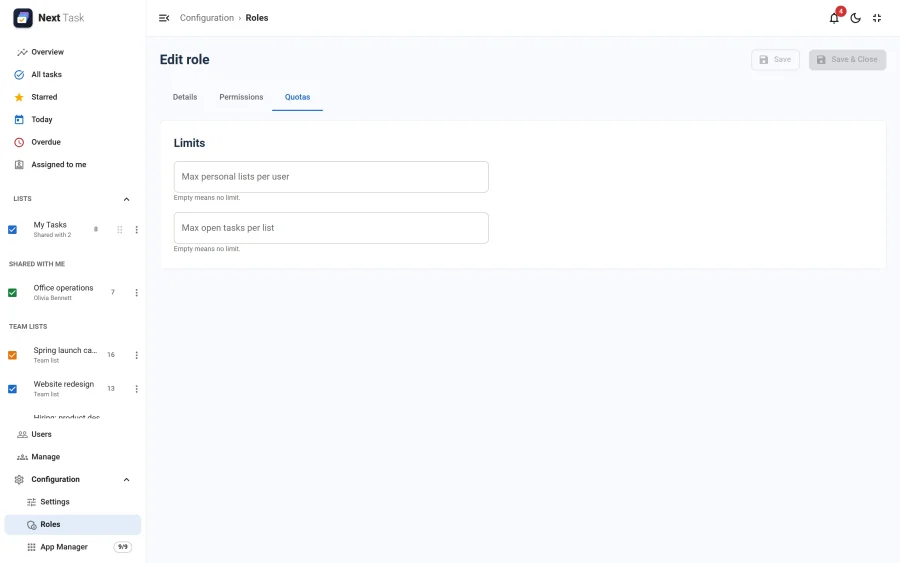
- Max personal lists per user: the lists a person owns (team lists don't count).
- Max open tasks per list: tasks not completed and not deleted, subtasks included.
Empty means no limit. With several roles, the highest limit wins, and a role without a limit lifts it. Administrator and Super Users have none. A limit stops creating a list, creating a task or subtask, and moving tasks into a full list; it never deletes or hides anything, and restoring a task, the next copy of a recurring task, transfers and demo data are not held back. See Managing team lists.