Stock Movements
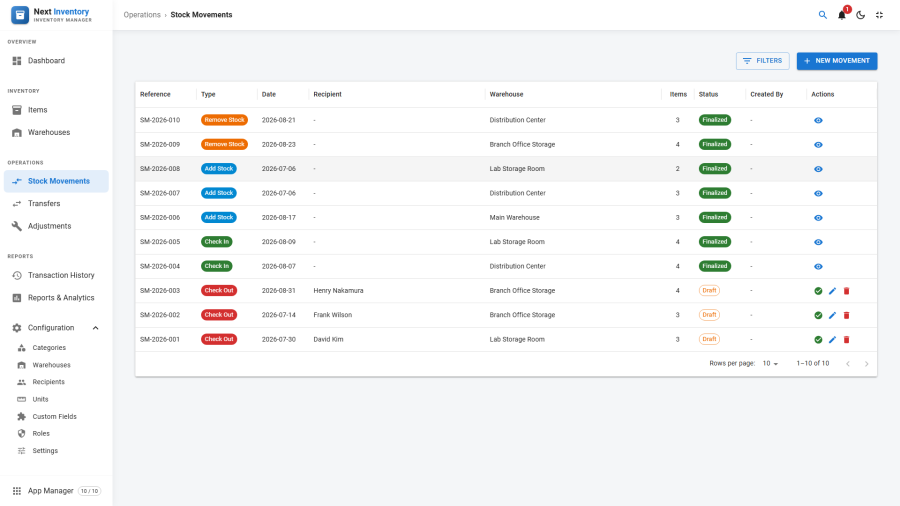
Stock Movements is the unified batch workflow for recording check-ins, check-outs, stock additions, and stock removals across multiple items in one transaction. Instead of entering transactions one-by-one on individual items, you create a movement header, add as many line items as you need, and finalise the whole batch at once.
It lives under Components > Next Inventory > Stock Movements (also the first item under the Stock section in fullscreen mode) and is the most common data-entry screen for day-to-day stock keepers.
For Users
The Draft → Finalise Pattern
Every movement you create starts as a Draft. Drafts are editable, don't change stock quantities, and don't create transactions. They're your scratch pad.
Once you're happy with the draft:
- Click Save & Finalise (or the checkmark icon from the list).
- Next Inventory writes one transaction per line item, updates each item's stock quantity, and flips the movement to Finalised.
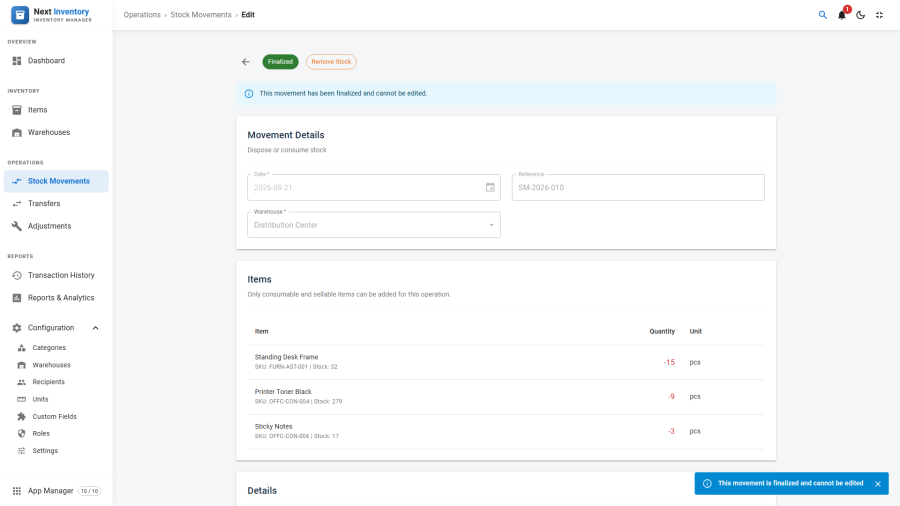
- Finalised movements are read-only — you can't edit them. The audit trail is preserved.
That's the whole mental model — drafts are safe to mess with, finalised records are permanent.
Creating a Movement
- Click New from the Stock Movements list.
- Pick a Movement Type:
- Check Out — asset goes to a recipient (stock decreases)
- Check In — asset returns (stock increases)
- Add Stock — increment consumable/sellable
- Remove Stock — decrement consumable/sellable
- Fill in the header: Date, Warehouse, optionally a Recipient (required for check-out/check-in), and a free-text Reference for your own paperwork.
- Add line items in the line-items panel. Each line picks an item and a quantity; for serial-numbered assets you can also pick a specific serial.
- Click Save to keep it as a draft, or Save & Finalise to commit.
Common Workflows
- Received a delivery of 12 different consumables — one Add Stock movement, one line per SKU with its quantity.
- Checking 3 laptops out to the same recipient — one Check Out movement with the recipient set, three line items (one per laptop serial).
- End-of-day stock adjustment for a sellable store — a Remove Stock movement listing every item sold with quantities.
- Can't decide what's in / out yet — save as draft and come back tomorrow.
Tip: the filter drawer carries a date range with quick presets (see Choosing dates), and the list view has a Status filter (All / Draft / Finalised) so you can find your work-in-progress drafts fast.
For Admins
What Actually Gets Written
On finalise, each line item produces:
- One entry in the transaction history, with the matching type (Check Out, Check In, Add Stock, or Remove Stock), a signed quantity change (negative for the stock-decreasing types), the item's resulting stock, and the batch reference that groups all lines from the same movement together.
- An update to the item's stock, so the item record immediately shows the new quantity.
All lines succeed together or none do — a movement can never be half-applied.
Once written, neither the transactions nor the item quantity can be unrolled from the movement — the only way to reverse a finalise is to create an opposite movement. This is deliberate, not a missing feature, so the audit trail is a ledger rather than a document.
Permissions
| Action | Feature | Permission |
|---|---|---|
| See Stock Movements list | transactions |
view |
| Create a new movement | transactions |
(depends on movement type — see below) |
| Edit / finalise a draft | transactions |
(same) |
| Delete a draft | transactions |
view + inventory.delete |
Per-type permissions:
- Check Out →
transactions.checkout - Check In →
transactions.checkin - Add Stock →
transactions.add_stock - Remove Stock →
transactions.remove_stock
A user who can check items in but not out will see only Check In in the movement type dropdown.
Edge Cases
- Stock would go negative — by default, finalising a movement that would push an item below zero is blocked with a validation error. Decide beforehand whether you want to allow overdrafts in Settings.
- Recipient required but not set — check-out and check-in both require a recipient. The form blocks finalise until one is picked.
- Deleting a finalised movement is not possible from the UI. The transactions it created remain in the audit log.
- Deleting an item referenced by a movement line is allowed, but the line loses its link to the item. If you reopen the draft, the line shows the item as missing.
- Unit conversion on line items — if the item has a unit and you enter a quantity in a different compatible unit, the line converts to the item's base unit on save. See Units.
- Attachments — use the side panel on the edit page to attach files (delivery notes, photos, signed forms). They stay with the movement and survive finalise.
Form Reference
Header fields
| Field | Required | What it's for |
|---|---|---|
| Movement Type | Yes | Check Out, Check In, Add Stock, or Remove Stock |
| Reference | No | Your own paperwork reference (up to 100 characters) |
| Date | Yes | Effective date of the movement |
| Warehouse | Yes | Warehouse the stock moves out of or into |
| Recipient | For check-out / check-in | Who receives or returns the items |
| Details | No | Free-text notes about the movement |
| Attachments | No | Files added via the side panel (delivery notes, photos); kept after finalise |
Line-item fields
| Field | Required | What it's for |
|---|---|---|
| Item | Yes | The item to move |
| Quantity | Yes | How much moves — a positive number, decimals allowed |
| Unit | No | Unit the quantity is expressed in; converted to the item's unit on save |
| Serial Number | No | Pin the line to a specific serial-tracked asset |
| Reason | For Remove Stock | Why the stock is being removed |
| Cost/Unit | No | FIFO/LIFO only, and only on movements that add stock. What this batch actually cost per unit |
Cost/Unit appears only when Inventory Costing is set to FIFO or LIFO, and only on movement types that increase stock — there is nothing to price on the way out, because outgoing stock is costed from the layers it consumes. Fill it in and the batch is recorded at what you actually paid; leave it empty and the layer falls back to the item's unit price, which flattens the per-batch cost differences that FIFO and LIFO exist to track.