Quick Start
This page takes you from a fresh install to a board your team is working on. It takes about ten minutes.
Open Components → Next Boards in the Joomla administrator. You land on the boards page.
1. Create a board
Click New board.
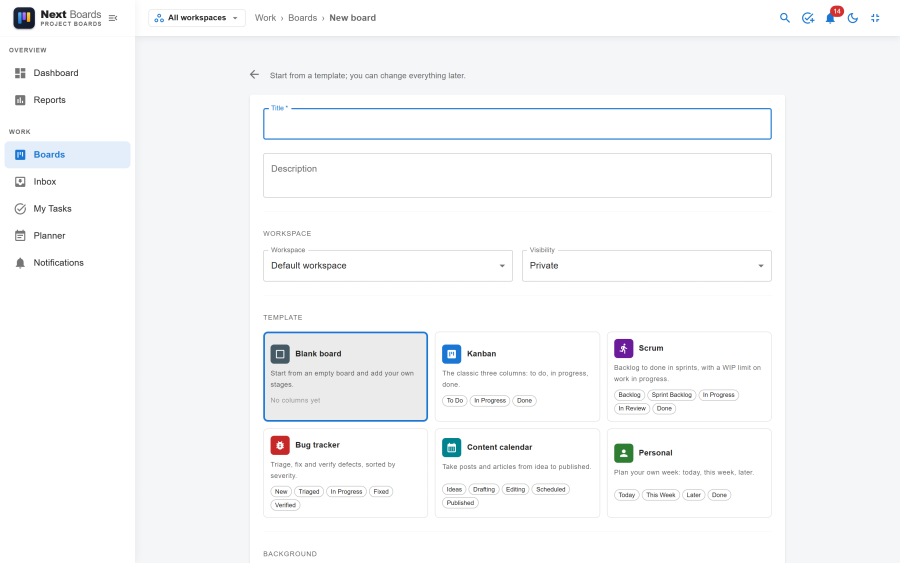
- Pick a template. Kanban (To Do, In Progress, Done) suits most teams; Blank board starts with no stages.
- Type a title, for example "Website relaunch".
- Leave Workspace on Default workspace and Visibility on Private for now. Private means only the people you add can see the board.
- Click Create board.
The board opens. You are its owner and admin.
2. Add stages and cards
- To add a column, click Add stage at the right end of the board, type its name and press Enter. Drag a stage by its header to change the order.
- To add a task, click Add a card under a stage, type a title and press Enter. Press Enter again for the next card.
- Drag a card to another stage when the work moves on, or up and down to change its priority in the list.
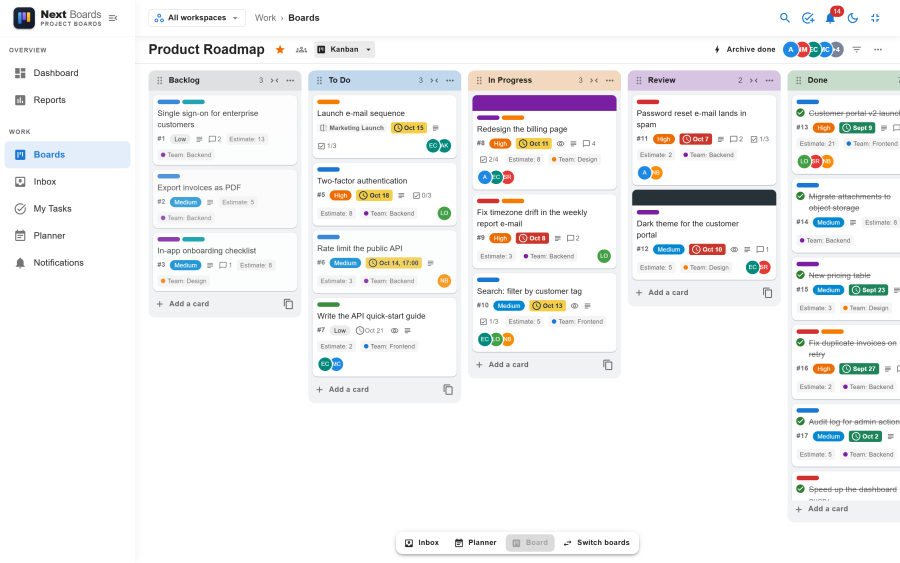
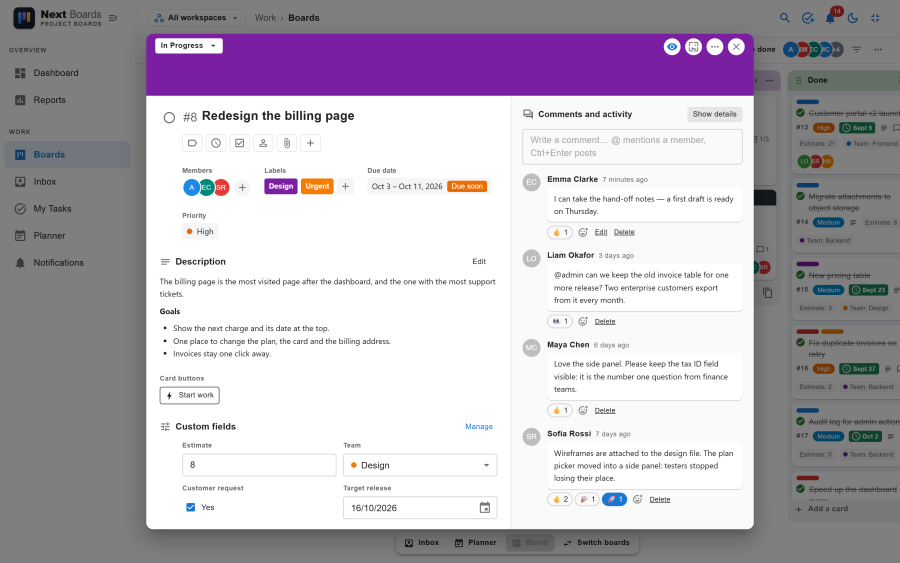
Now click a card to open it and give it some substance:
- Members: who does it.
- Dates: when it is due, with a reminder.
- Labels: what kind of work it is.
- Checklist: the steps, each of which can have its own person and day.
- A description, files, and comments. Type
@in a comment to mention someone.
Nothing needs saving. Each change is stored as you make it.
3. Invite your team
Click the member avatars in the board bar, or Share in the board menu.
- Type a name or username, at least two letters, and pick the person.
- Choose their role: Admin (manages the board), Member (works on cards) or Observer (reads only).
- Click Add. They get a notification and the board appears on their boards page.
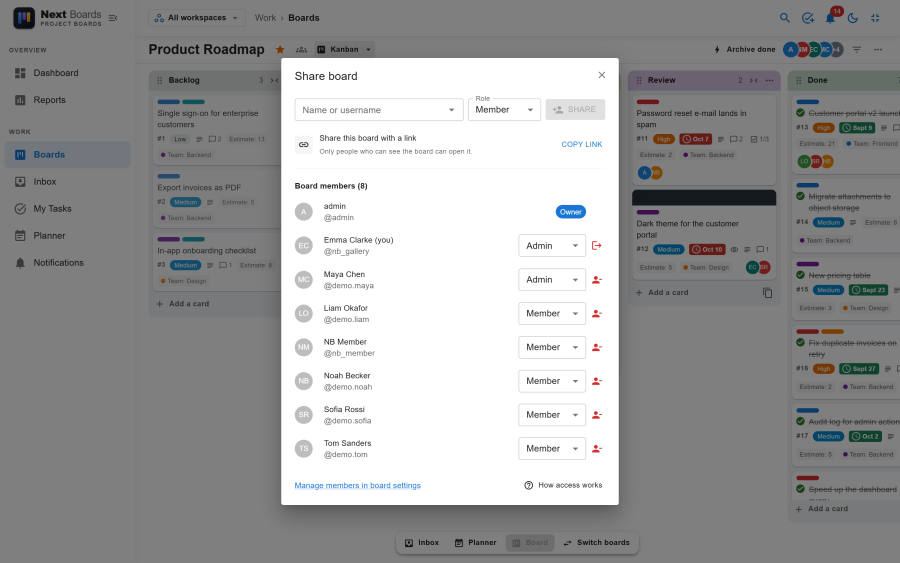
Everyone you add needs a Joomla user account on the site. They do not need access to the administrator: see "Put Next Boards on your site" below.
What Happens Next
Your board is in use. From here:
- Each member finds their cards under Work → My Tasks, and is told about mentions, assignments and due dates by the bell in the header.
- Switch the board to List, Calendar or Roadmap with the view menu in the board bar. See List, Calendar and Roadmap views.
- Press
?for the keyboard shortcuts, andCtrl+Kto search every board and card. - Jot things down in your private Inbox with the
ikey, and plan your week in the Planner. - Let the board do routine steps for you with Automation.
Put Next Boards on your site
To let people work without the Joomla administrator, add a menu item of type Next Boards → Boards to a site menu. Signed-in users get the full application there. See Frontend access.
Turn on e-mail
Notification e-mails and due reminders are sent by Joomla's Scheduled Tasks. The installer creates the tasks; you only need to make sure Joomla's scheduler runs. See Scheduled tasks.
Decide who can create boards
On a fresh install every registered user can create boards. To change that, or to give someone the right to administer everything, see Access and permissions.
Organise by team
When one list of boards is no longer enough, group them into Workspaces and share boards with a whole team at once.