Automation: rules, buttons and scheduled commands
Automation does the repetitive work of a board for you: tick a card done when it reaches the last list, add a review checklist to every new bug, clear out the Done list every Friday. Nothing to script; you choose a trigger and a list of actions.
Open it with Board menu → Automation. Everyone on the board can see what is set up. Only board admins can add or change automations.
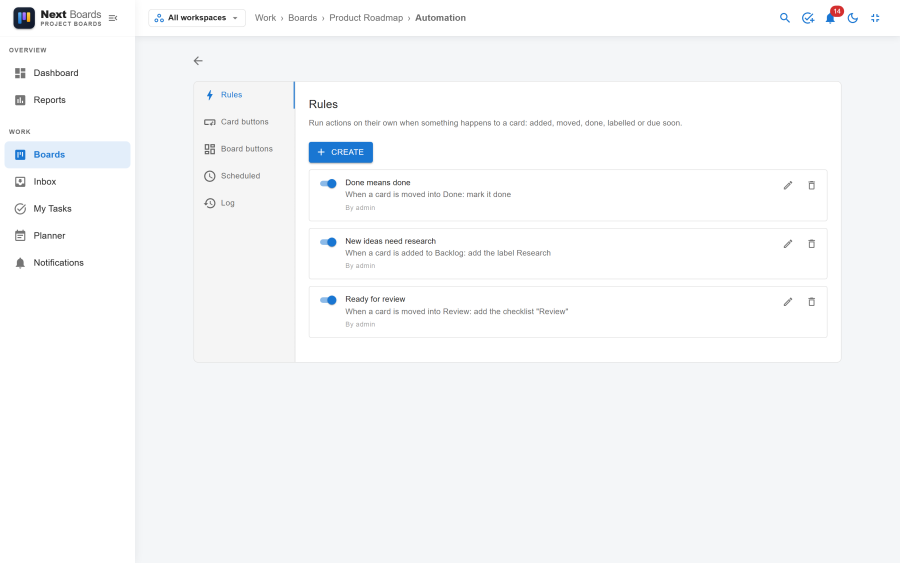
The four kinds
| Tab | Runs | Works on |
|---|---|---|
| Rules | By itself, when something happens to a card. | That card. |
| Card buttons | When someone presses the button in a card window. | That card. |
| Board buttons | When someone presses the button in the board bar or in a list menu. | Every card of one list, or of the whole board. |
| Scheduled | Every day or every week at a set time. | Every card of one list, or of the whole board. |
The fifth tab, Log, shows what ran.
Rule triggers
A rule starts with one of these events:
| Trigger | Can be narrowed to |
|---|---|
| A card is added | One list |
| A card is moved | The list it moves into |
| A card is marked done | |
| A label is added to a card | One label |
| A card is due soon |
"Due soon" fires when the card's due reminder goes out, so it follows the reminder set on the card, the board or the site. It needs the Notifications and Due reminders apps to be on.
Conditions
Conditions limit which cards an automation touches. Without any, every card qualifies. All conditions must be true.
| Condition | |
|---|---|
| has the label / does not have the label | One label of the board |
| has members / has no members | |
| has a due date / has no due date | |
| is done / is not done |
Actions
Actions run in the order you put them. An automation can have up to 10.
| Action | Options |
|---|---|
| Move the card | To a list, at the top or the bottom |
| Mark it done / Mark it not done | |
| Archive the card | |
| Add a label / Remove a label | One label of the board |
| Add a member / Remove a member | One board member, or The person running it |
| Set the due date | A number of days from today (0 = today) |
| Remove the due date | |
| Add a checklist | A title and its items, one per line |
| Post a comment | The text of the comment |
Creating an automation
- Open the tab for the kind you want and click the New button.
- Give it a name. For a button, this is the text on the button.
- Choose the trigger (rules), the list it works on (board buttons and scheduled commands) or the time (scheduled commands).
- Add conditions if only some cards should qualify.
- Add the actions and click Create.
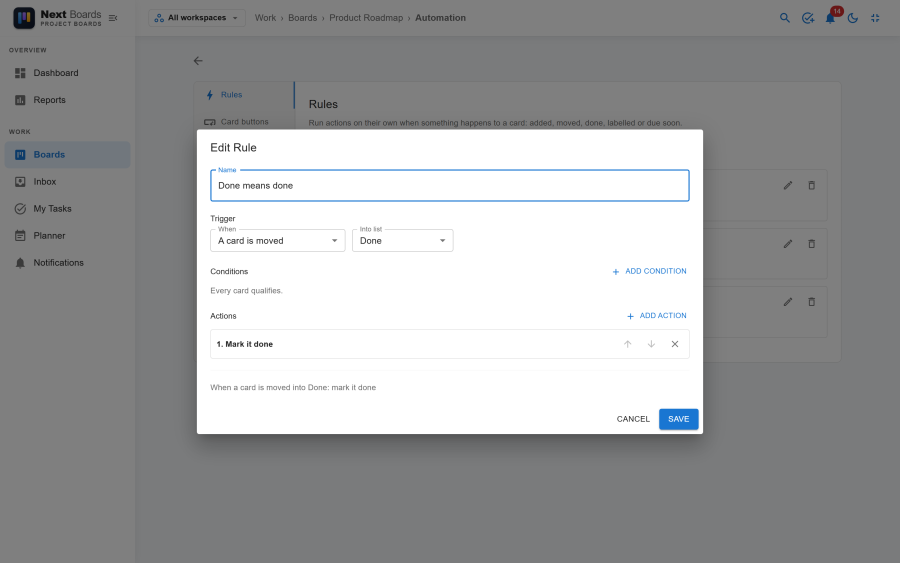
Each automation has a switch to turn it off without deleting it. The line under its name reads back what it does in plain words, for example When a card is moved into Done: mark it done, remove the label In review.
Buttons
- Card buttons appear in every card window of the board. Any member can press them.
- Board buttons appear under Buttons in the board bar. A board button set to one list also appears in that list's menu. Pressing one runs its actions on each card and then reports how many cards were done.
Scheduled commands
Choose Every day or Every week with a weekday, and a time as HH:MM. The time is in the site's time zone, not yours; the editor shows the zone and what that time is for you.
Scheduled commands are run by Joomla's Scheduled Tasks, which checks every 15 minutes, so a command set for 08:00 runs at the first check after 08:00. Run now runs a command at once. See Scheduled tasks.
Who an automation acts as
| Kind | Acts as |
|---|---|
| Rules and scheduled commands | The person who created them |
| Card and board buttons | The person who presses the button |
That person must still be allowed to edit cards on the board. If the creator of a rule has left the board or become an observer, the rule is skipped and the log says so. Recreate it as a current member.
Changes made by an automation are written to the card's activity as made by the automation, so the history shows what was done by a person and what was not.
The log
The Log tab lists the latest runs: which automation, on which card, when, and how it went.
| Status | Meaning |
|---|---|
| Done | Every action ran. |
| Skipped | The automation did not run on this card, for example because the person it acts as can no longer edit the board. |
| Failed | An action could not be carried out. The other cards of the same run are not affected. |
Old log entries are removed by the daily clean-up task.
Limits worth knowing
- An automation only works on the cards of its own board. It cannot move a card to another board.
- An action of one rule can trigger another rule (moving a card into Done can fire "A card is moved"). Such chains stop after three steps, and a rule never triggers itself.
- A rule runs just after the change that triggered it has been saved. A failing rule never undoes that change.
- Automations are not part of a board export, a duplicate or a template. Set them up again on the new board.
- An Inbox has no automation.
Switching automation off
With the Automation app switched off under Configuration → Apps, no rule, button or scheduled command runs anywhere. Their definitions and logs are kept.
See also
- Notifications: due reminders
- Scheduled tasks
- Time zones